Introduction
For many gamers in Malaysia, experiencing game lag on Android devices can be frustrating, especially when you're in the heat of an intense match. Game lag refers to the delay between your actions and the game's response, which can be caused by various factors, including hardware limitations, poor network connectivity, and background processes consuming resources. Optimizing your device settings is crucial for a smoother gaming experience, and one of the most effective ways to achieve this is by utilizing the Developer Options feature on your Android device.
What Are Developer Options?
Developer Options is a hidden menu in Android devices that allows users to access advanced features and settings that are typically used by app developers. This menu provides tools to test and optimize applications, but it also includes options that can significantly enhance your device's performance, particularly for gaming. By adjusting settings in Developer Options, you can help reduce lag, improve frame rates (FPS), and ensure a smoother gaming experience.

How to Adjust Settings
Adjusting the settings in Developer Options can significantly reduce game lag and enhance your overall gaming experience. Here’s how you can enable Developer Options and modify specific settings for optimal performance.
Enabling Developer Options
To access Developer Options on your Android device, follow these simple steps:
- Open the Settings app on your device.
- Scroll down and select About phone or About device.
- Look for Build number and tap on it seven times. You may be prompted to enter your device password or PIN.
- Once enabled, go back to the main Settings menu, and you should see Developer Options listed.
Now that you have access to Developer Options, you can start adjusting various settings to improve your gaming performance.
Key Settings to Modify
There are several settings within Developer Options that can help reduce game lag. Here are the most effective ones to consider:
- USB Debugging: Enabling this option can improve performance during game testing and development but is not necessary for regular gaming.
- Window Animation Scale: Set this to Animation off. This will disable animations for smoother transitions.
- Transition Animation Scale: Similar to window animations, set this to Animation off for a more responsive UI.
- Animator Duration Scale: Set this to Animation off as well. Disabling animations reduces the time your device takes to respond to your inputs.
- Force GPU Rendering: Enabling this option allows your Android device to use the GPU for 2D rendering, which can improve game performance.
- Background Process Limit: Choose No background processes or limit it to 1 or 2 processes. This helps free up system resources for your game.
By modifying these settings, you should notice a significant decrease in lag and an increase in overall game responsiveness.
Additional Tips
Beyond adjusting Developer Options, there are several other strategies you can employ to further enhance your gaming performance on Android devices:
- Close Background Apps: Before launching your game, make sure to close any unnecessary applications running in the background. This will free up RAM and processing power.
- Update Your Games and Device: Keep your games and Android system updated to ensure you have the latest performance improvements and bug fixes.
- Use Gaming Mode: Many Android devices come with a gaming mode that optimizes performance. Activate this feature to enhance your gaming experience.
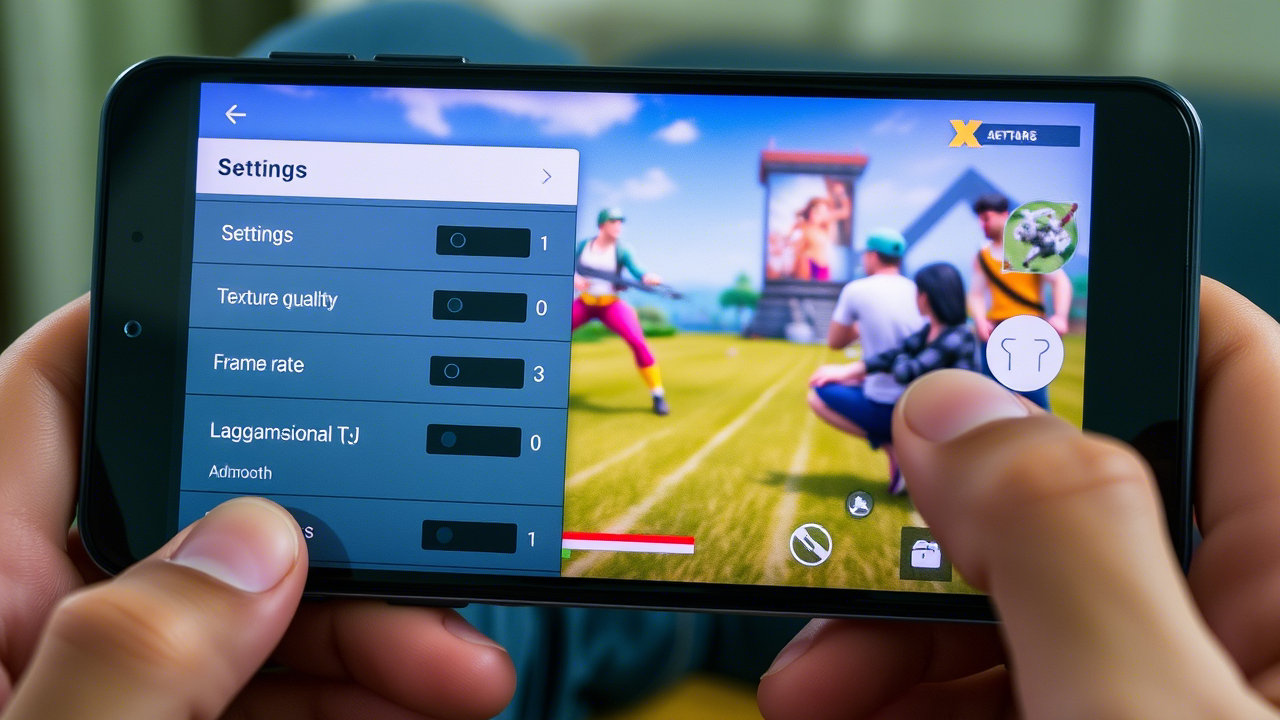
- Reduce Graphics Settings: Within the game settings, consider lowering the graphics quality for smoother gameplay, especially for more demanding titles.
- Clear Cache Data: Regularly clear the cache of your games and apps to improve performance.
These additional tips can complement the adjustments made in Developer Options, ensuring a more enjoyable gaming experience.
Conclusion
Reducing game lag on your Android device in 2026 is entirely achievable through the use of Developer Options and various optimization techniques. By enabling Developer Options and adjusting key settings, you can significantly enhance your gaming performance, making it smoother and more enjoyable. Don't hesitate to experiment with these settings to find what works best for your device and gaming style. With a few tweaks, you can level up your gaming experience and conquer your favorite titles with ease.