Top 7 Troubleshooting Techniques for Android Game Crashes in 2026
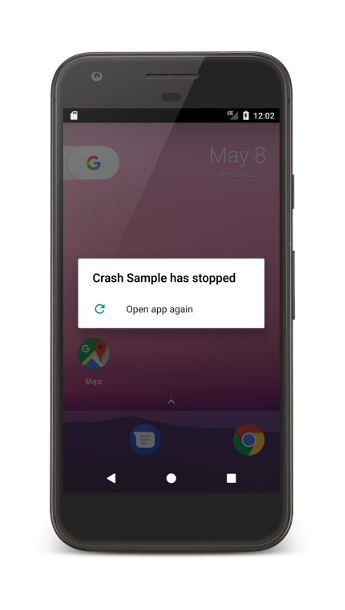
For many Malaysian gamers, the thrill of playing on Android devices can sometimes be cut short by unexpected game crashes. It's frustrating, especially when you’re about to make a crucial move in your favorite game. In 2026, over 50% of mobile gamers report experiencing crashes regularly. However, understanding the common causes and applying effective troubleshooting techniques can keep your gaming experience smooth and enjoyable.
Common Causes of Game Crashes
Before diving into troubleshooting, it's essential to understand what might be causing your games to crash. Here are some frequent culprits:
- Software Incompatibility: Sometimes, the game may not be fully compatible with your device's Android version. This is particularly common with newly released titles that may require the latest OS updates.
- Insufficient Memory: Android devices have limited resources. If your device is running low on RAM or storage, it may struggle to run graphics-intensive games, leading to crashes.
- Outdated Apps: Regular updates from game developers can reduce crash frequency by up to 30%. If your app isn't updated, it may not perform well with the latest Android features or fixes.
- High Graphics Settings: Many games allow players to tweak graphics settings. However, pushing these settings too high on older devices can lead to instability and crashes.
Step-by-Step Troubleshooting
Now that we’ve pinpointed some common issues, let’s explore a detailed troubleshooting process you can follow to resolve game crashes on your Android device:
- Restart Your Device: A simple reboot can refresh your device’s memory and resolve temporary software glitches. Always start here.
- Check for Updates: Ensure both your Android OS and the game are updated to the latest versions. Go to Settings > About Phone > System Updates for Android, and check the Google Play Store for game updates.
- Clear Cache: Over time, the cache can build up and cause performance issues. Go to Settings > Apps > find your game and tap on Storage, then select Clear Cache.
- Free Up Storage Space: If your device is running low on space, delete unnecessary files or apps. Aim for at least 15% of your total storage to be free for optimal performance.
- Adjust Game Settings: Lowering graphics settings can help. Access the game’s settings and reduce the resolution or texture quality. This can significantly reduce the chances of crashes.
- Reinstall the Game: If crashes persist, uninstall the game and then reinstall it. This can resolve issues related to corrupted files within the game.
- Factory Reset (Last Resort): If all else fails, a factory reset can restore your device to its original settings. Be sure to back up your data first, as this will erase everything.

Additional Tips for Stability
While following the troubleshooting steps can resolve many issues, there are additional measures you can take to optimize your gaming experience:
- Use a Game Booster: Several apps on the Play Store can optimize your device's performance by managing resources and shutting down background applications while you play.
- Keep Your Device Cool: Overheating can cause crashes. Make sure your device is well-ventilated during long gaming sessions. Avoid playing games while charging to minimize heat.
- Monitor Battery Health: A failing battery can affect performance. Check your battery health and consider replacing it if performance is significantly degraded.
- Limit Background Processes: Close apps running in the background to free up memory. You can do this by accessing the recent apps menu and swiping away unused applications.
Frequently Asked Questions
What causes Android games to crash?
Android games can crash due to a variety of factors, including software incompatibility with your device, insufficient memory or storage, outdated apps, and high graphics settings that your device cannot handle.
What should I do if a game keeps crashing?
If your game keeps crashing, follow the troubleshooting steps outlined above. Start with restarting your device and checking for updates, then clear the cache and adjust settings as necessary. If the problem persists, consider reinstalling the game.
By adopting these troubleshooting techniques and optimization tips, you can enhance your gaming sessions on Android. Whether you’re a casual gamer or deeply immersed in competitive play, having a stable gaming experience is crucial. Happy gaming!