Introduction
In the fast-paced world of mobile gaming, achieving smooth gameplay is essential for an immersive experience. One of the key factors contributing to this smoothness is Frames Per Second (FPS). Higher FPS means less lag and more fluid motion, which can be a game-changer, especially in competitive scenarios. For Malaysian gamers, optimizing your Android device settings can significantly improve your FPS, enhancing your overall gaming performance.
Best Settings to Improve FPS
To maximize your gaming performance on Android, adjusting specific settings can make a substantial difference. Here’s a breakdown of the best settings you can tweak to improve your FPS.

Graphics Settings
One of the first places to start is with your graphics settings. High-quality graphics may look great, but they can be a drain on your device's resources. Here's how to adjust them:
- Lower the Resolution: Reducing the game's resolution can lead to a significant FPS boost. Most games offer settings to lower the resolution without compromising too much on visuals.
- Disable Anti-Aliasing: Anti-aliasing smooths out jagged edges in graphics, but it can be taxing on performance. Disabling it can help maintain higher FPS.
- Turn Off Shadows: Shadows can be visually appealing but are often resource-intensive. Switching them off can free up processing power for better FPS.
By tweaking these graphics settings, you can often see FPS improvements of up to 30%, allowing for a smoother gaming experience.
Game Mode Features
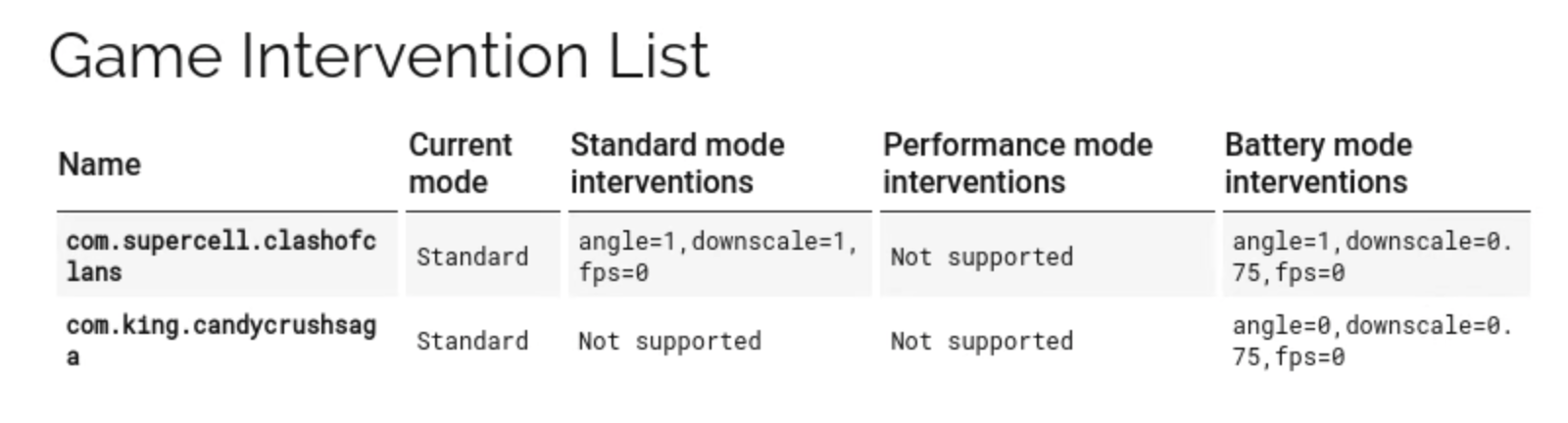
Many Android manufacturers, including Samsung and Xiaomi, provide built-in game modes that optimize settings automatically when you launch a game. These features can help maximize your device's performance:
- Samsung Game Launcher: This feature allows you to adjust performance settings and block notifications while gaming, ensuring a distraction-free experience.
- Xiaomi Game Turbo: Similar to Samsung's offering, this mode optimizes CPU and GPU usage, prioritizes resources for the game at hand, and can boost FPS significantly.
- OnePlus Gaming Mode: OnePlus devices include a gaming mode that minimizes background processes and enhances touch response, which can further improve your gaming performance.
Performance Tips
Besides adjusting settings, there are additional measures you can take to further optimize your device's performance for gaming.

Managing Background Apps
One of the easiest ways to improve FPS is by managing background processes. Background apps consume valuable resources that could be directed towards your gaming experience. Here are some tips:
- Close Unused Apps: Regularly close apps running in the background that you are not using. This can free up RAM and processing power for gaming.
- Use Developer Options: Enabling 'Don't Keep Activities' in Developer Options will force apps to close once you leave them, ensuring minimal background resource usage.
- Optimize Your Home Screen: Keep your home screen clutter-free by removing unnecessary widgets and apps to improve loading times.
By managing background apps effectively, you can see a noticeable increase in FPS, leading to more responsive gameplay.
Device Maintenance
Regular maintenance of your device is critical for ensuring optimal performance over time. Here are a few maintenance tips to keep your Android device running smoothly:
- Clear Cache: Periodically clearing app cache can free up space and improve performance. Use the built-in storage settings on your Android device to do this easily.
- Update Software: Keeping your operating system and apps updated can help fix bugs and improve overall performance, often leading to better FPS.
- Uninstall Unused Apps: Remove apps that you no longer use to free up storage space and reduce background activity.
These maintenance tips not only help in improving FPS but can also extend the lifespan of your device.
Recommended Tools
To further enhance your FPS, consider utilizing various apps and tools that specialize in gaming optimization. Here are some of the best tools available:
- Game Booster Apps: Apps like Game Booster or GLTools can optimize your device's performance by allocating resources more effectively during gaming sessions.
- CCleaner: This app can help clear cache and unused files, freeing up storage space and improving overall device performance.
- Greenify: This app helps you manage background processes and can significantly reduce battery drain, allowing your device to perform better during gaming.
These tools can complement your manual settings adjustments and maintenance routines, leading to a more enjoyable gaming experience.
FAQs
What settings improve FPS in Android games?
To enhance FPS in Android games, focus on lowering graphics quality, disabling features like anti-aliasing and shadows, and utilizing game mode settings from your device manufacturer. Additionally, managing background apps and regularly maintaining your device can contribute significantly to better FPS.
Are there apps to boost FPS on Android?
Yes, there are several apps designed to boost FPS on Android devices. Game booster apps, such as Game Booster and GLTools, can optimize your device's performance by reallocating resources and limiting background processes. Other tools like CCleaner and Greenify can help clean up your device and enhance overall performance.
By following these tips and making the necessary adjustments, Malaysian gamers can significantly enhance their gaming experience on Android devices in 2026. Whether you're playing competitive shooters or immersive RPGs, improving your FPS is just a few settings away.